Introduction
Collections are logical groupings of objects that you manage in System Frontier. Membership can be defined statically or dynamically. Role permissions are applied at the collection level.
Create a collection
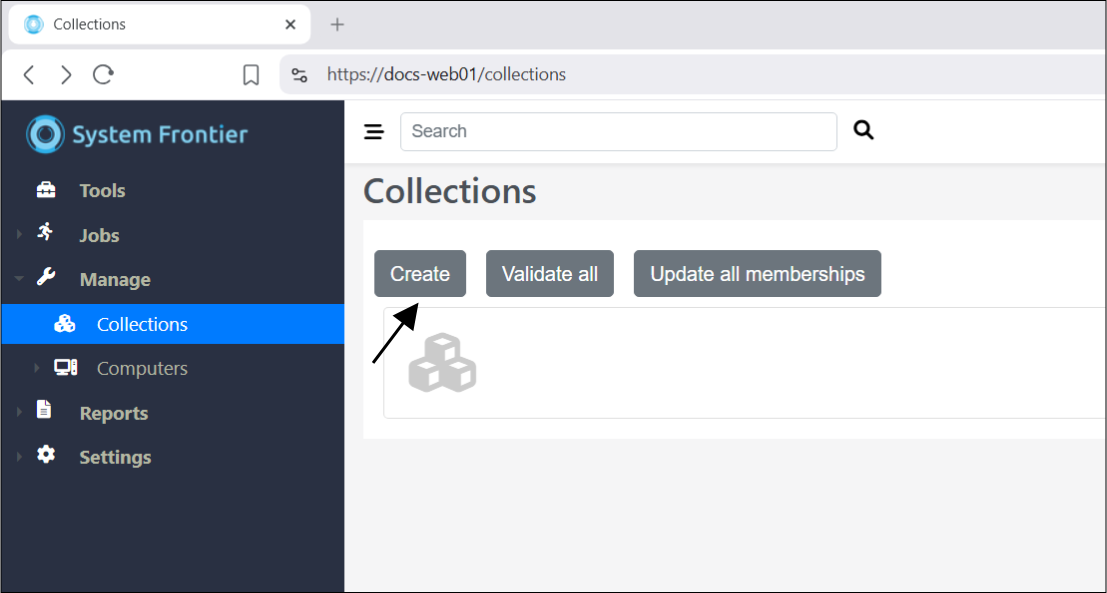
Navigate to Manage > Collections then click Create.
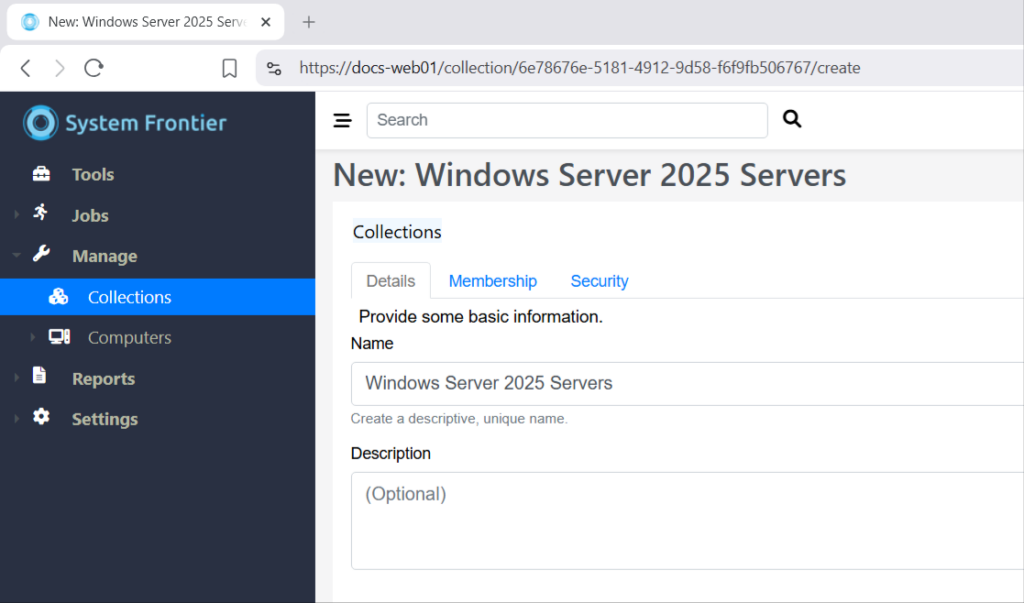
Provide a name for the collection and optionally, a description.
Click the Membership tab.
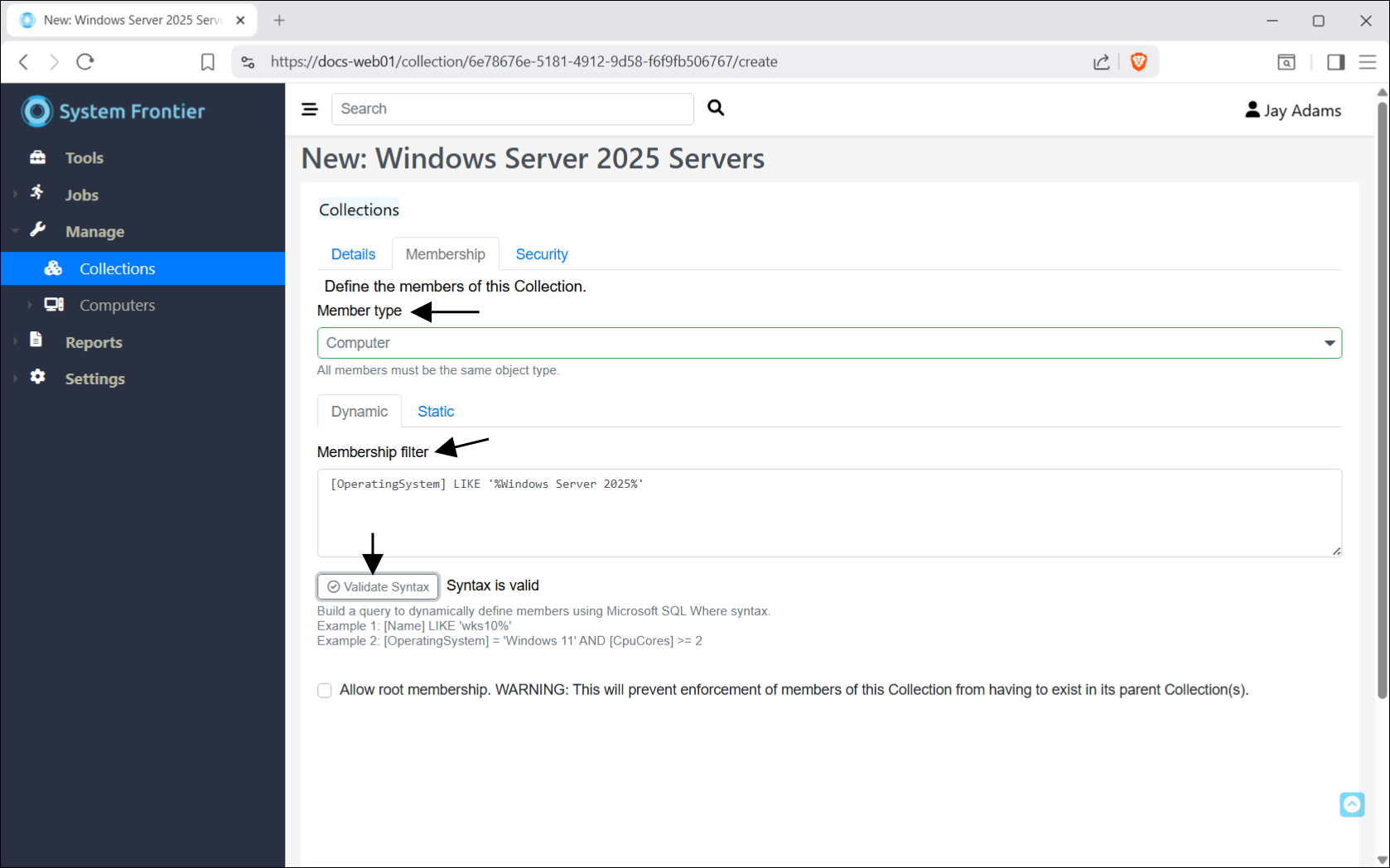
From the Member type dropdown, choose Computer.
Note: Not choosing a Member type treats the Collection like an empty folder in the collection hierarchy.
Dynamic members
Under the Dynamic tab, you can define a membership filter which will automatically include computers that meet the filter criteria. Filters are based on SQL Where syntax and are valid for data collected on each object in the database.
Example membership filter
Include all Windows Server 2025 servers.
[OperatingSystem] LIKE '%Windows Server 2025%'Static members
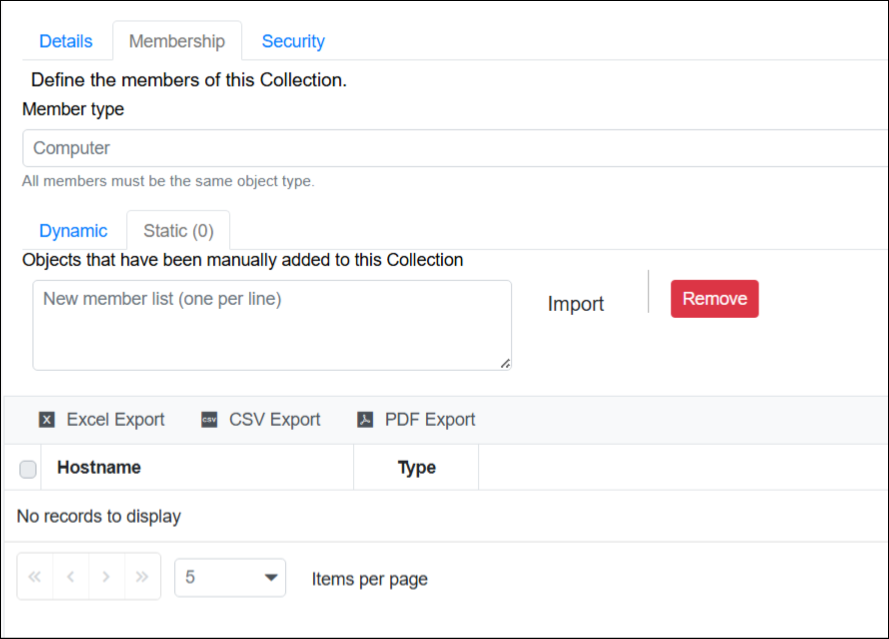
Under the Static tab, you can manually add computers to this collection by pasting in a list of hostnames (one per line) into the textbox and clicking Import.
Note: Computers imported here must already exist in the System Frontier database.
Security
Click the Security tab.
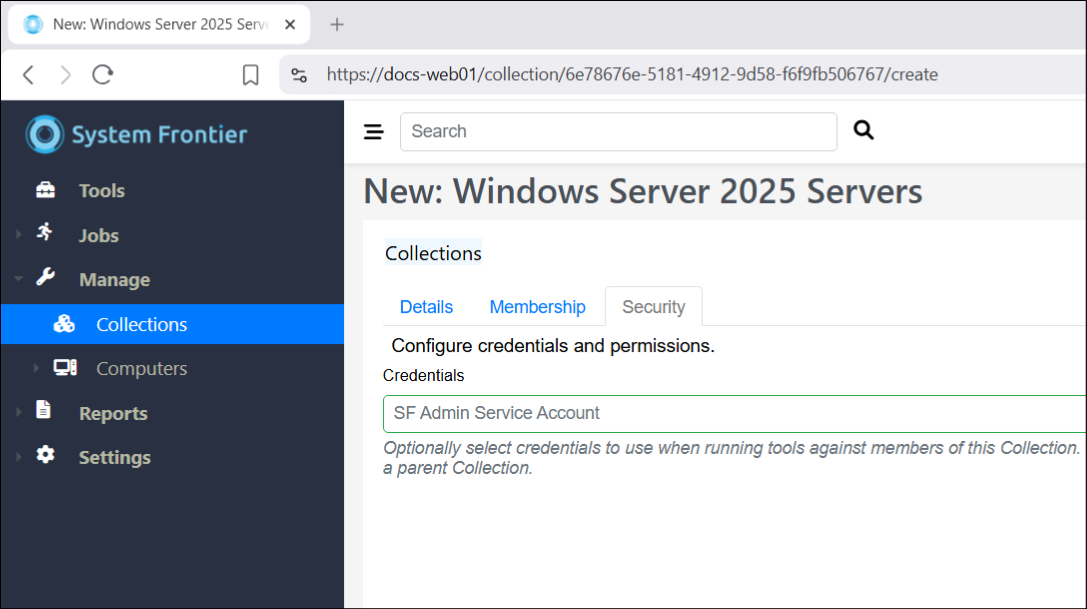
From the Credentials dropdown, you can select a secret to be used when authenticating remotely to members of this collection. Any tool run against the collection or individual members will run in the context of the selected credential.
Built-in tools, like the hardware and services tabs on the computer management view, resolve which credentials to use based on collection membership. Custom tools which leverage a managed object key field will also automatically resolve the correct credentials based on collection membership, if no credential is assigned to the tool.
Click Create.
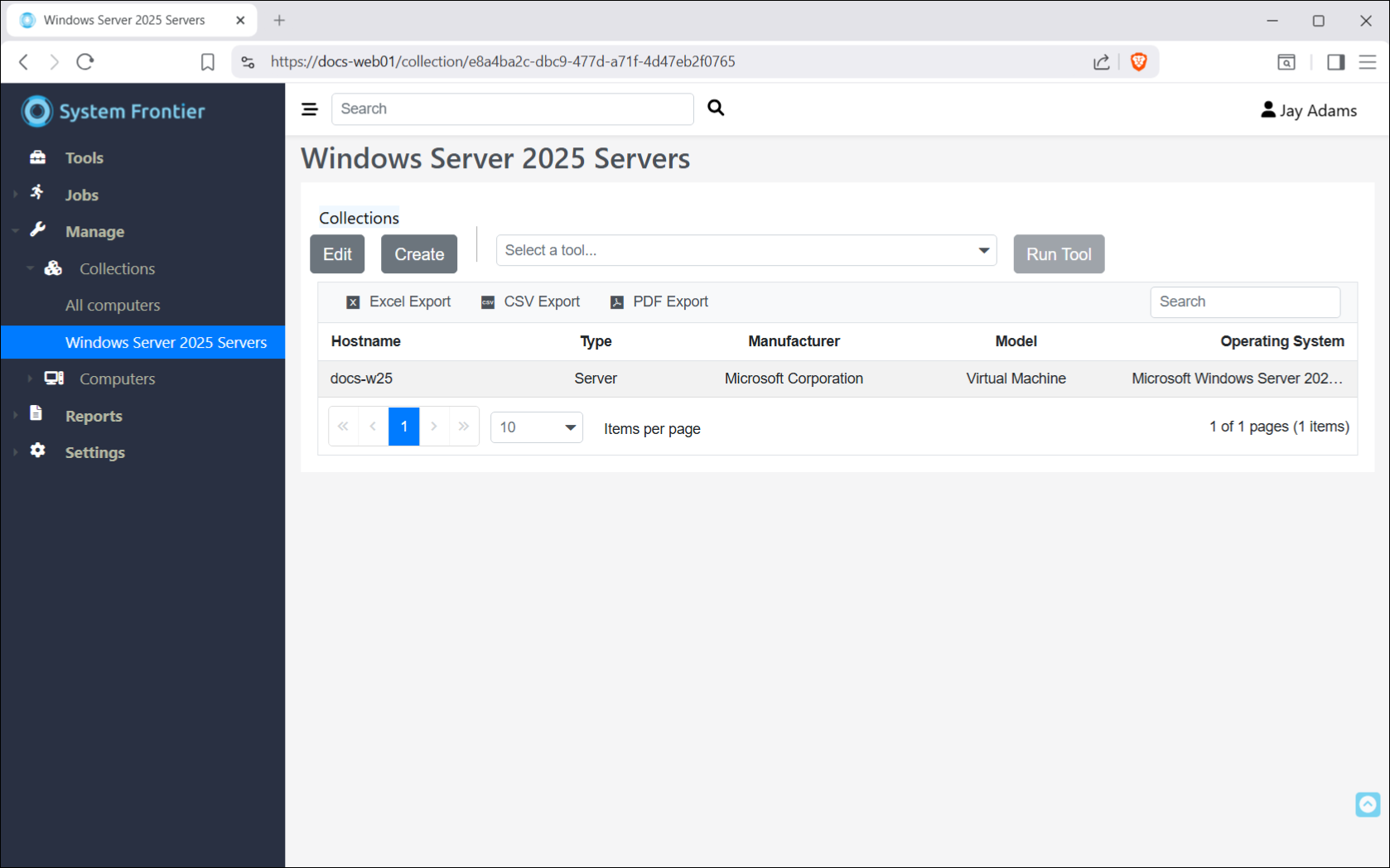
If the new collection doesn’t show up in the main menu, you may need to refresh the page.
From here, you can edit the collection or click Create to create another collection below this one. You can also select a tool from the Select a tool… dropdown and run it against the entire collection.
The toolbar at the top of the members table includes options for exporting the members list to Excel, CSV or PDF. You can also filter members as you type using the Search box.
All computer objects in System Frontier.
[Name] IS NOT NULLServer type computers in the Finance Apps Active Directory OU.
[Type] = 1 AND [DistinguishedName] LIKE '%OU=Finance Apps,DC=lab,DC=noxigen,DC=net'Virtual database servers based on a server naming standard where “DBS” represents a database server. Also, only from two specific domains.
[Type] = 1 AND [Name] LIKE '%DBS%' AND [IsVirtual] = 1 AND [DomainOrWorkgroup] IN ('LAB','Dev')Network switches only in the 192.168.77.0 to 192.168.80.0 range.
[Type] = 4 AND [IPAddress] LIKE '192.168.[77-80].%'Static members
While the preferred method of collection membership is to use dynamic queries, sometimes objects don’t fit a standard criteria or must always be a member and not be accidentally removed. With static memberships you can manually add members a collection.