Introduction
In this guide, you will install the IIS web application. This is the web front-end for both administrators and end users to interact with System Frontier via the browser and REST APIs.
System Requirements
| Recommended | Minimum | |
| Server OS: | Windows Server 2025 | Windows Server 2019 |
| Cores / vCores: | 4 | 2 |
| Memory: | 16 GB | 8 GB |
| Disk space: | 40 GB | 20 GB |
Getting Ready
Please perform the following tasks before starting the install.
- Download the latest setup zip file from your account page.
- Have the SQL connection information ready, including the SQL login and password that was used during the database installation.
- Note: The setup routine will automatically install the web server role and features needed, including IIS (Internet Information Services) and the Hosting Bundle for Windows Server.
Installation steps
- Extract the setup zip file.
- From the web server, run the setup-database.exe file.
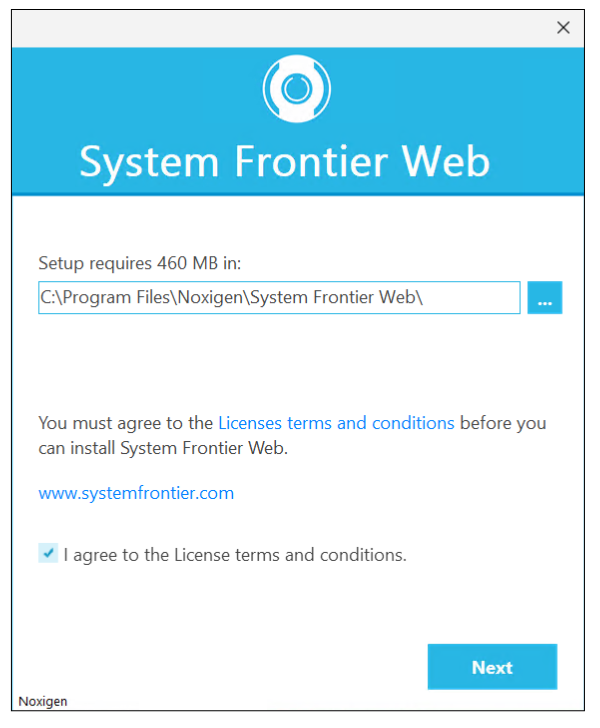
- Continue with the default install path or choose another.
- Accept the license terms and conditions, then click Next.
- Provide the same SQL Server connection information that was used during the database install.
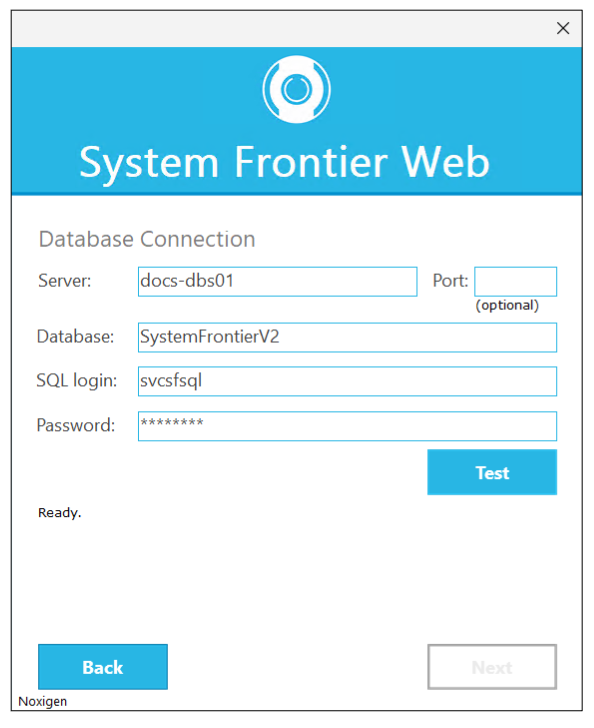
- Click Test to verify the connection and credentials to the database.
- Once the test is successful, click Next.
- Click New to create a new database encryption key or paste your own generated key. The original encryption key should be used if this server is part of an existing instance of System Frontier.
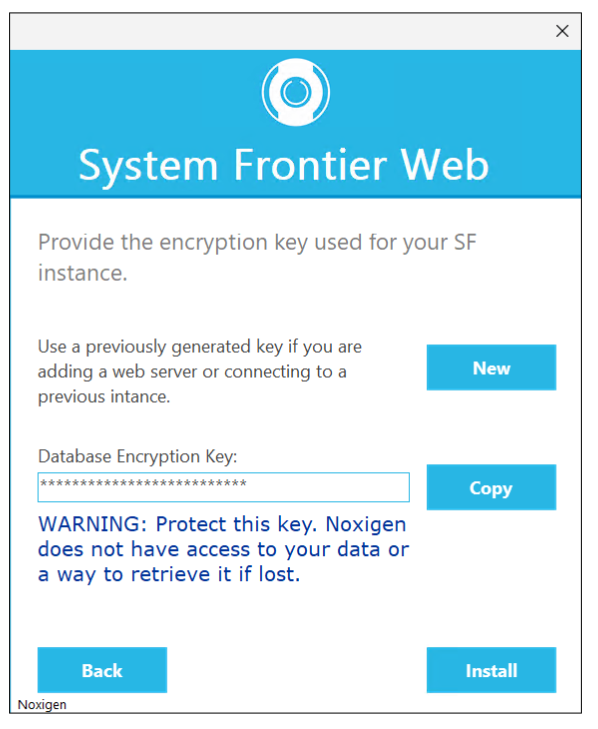 Note: If you click the Copy button, it may take a few seconds before the key appears in your clipboard.
 - Click Install.
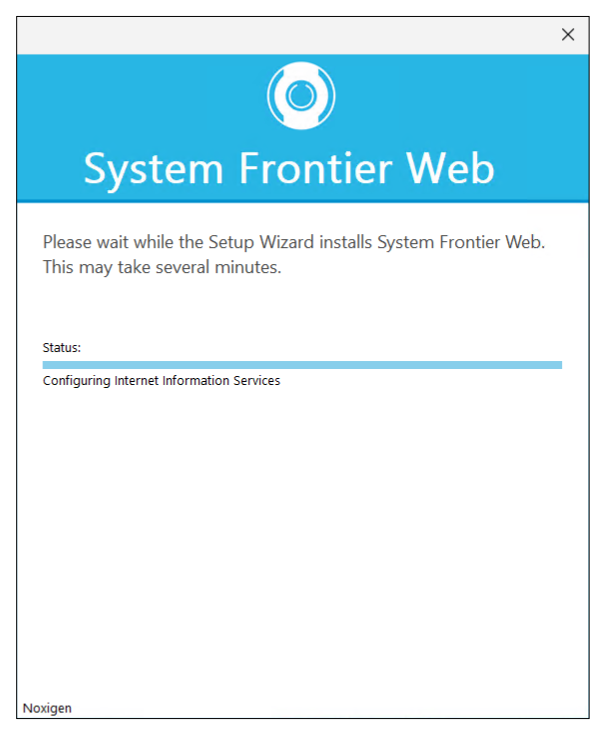 The install may take several minutes to complete.
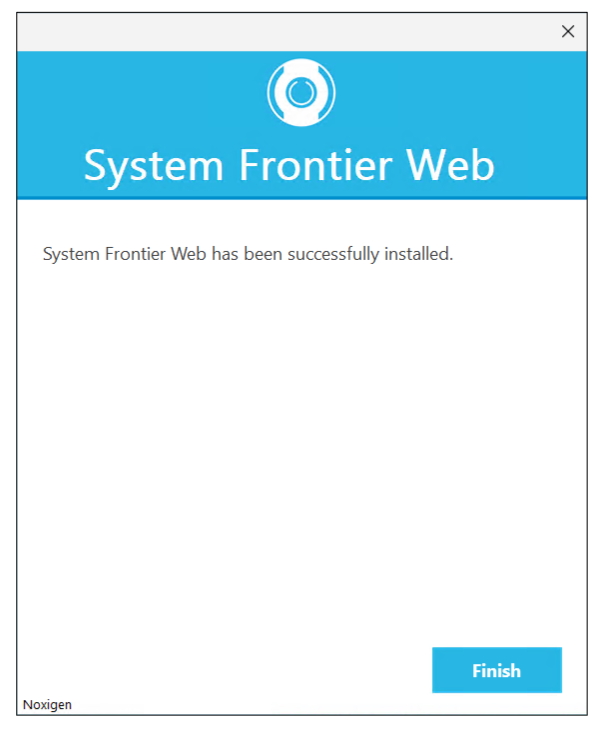
 - Once the installation has completely successfully, click Finish.
Next Steps
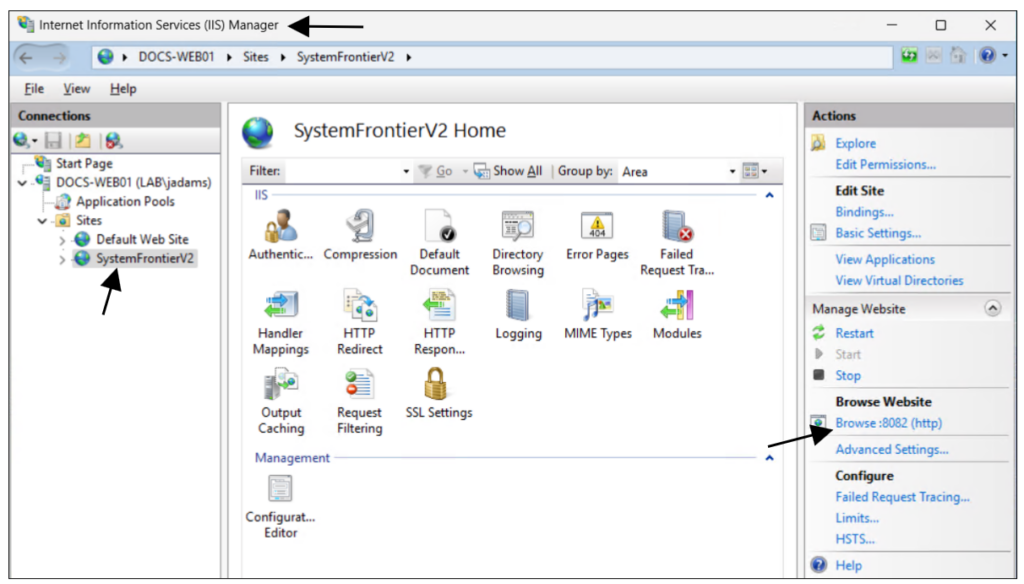
From the web server, verify the app is online by going to Internet Information Services (IIS) Manager > (this web server) > Sites > SystemFrontierV2 > Actions > Browse Website and click the Browse link to open the website in the local browser.
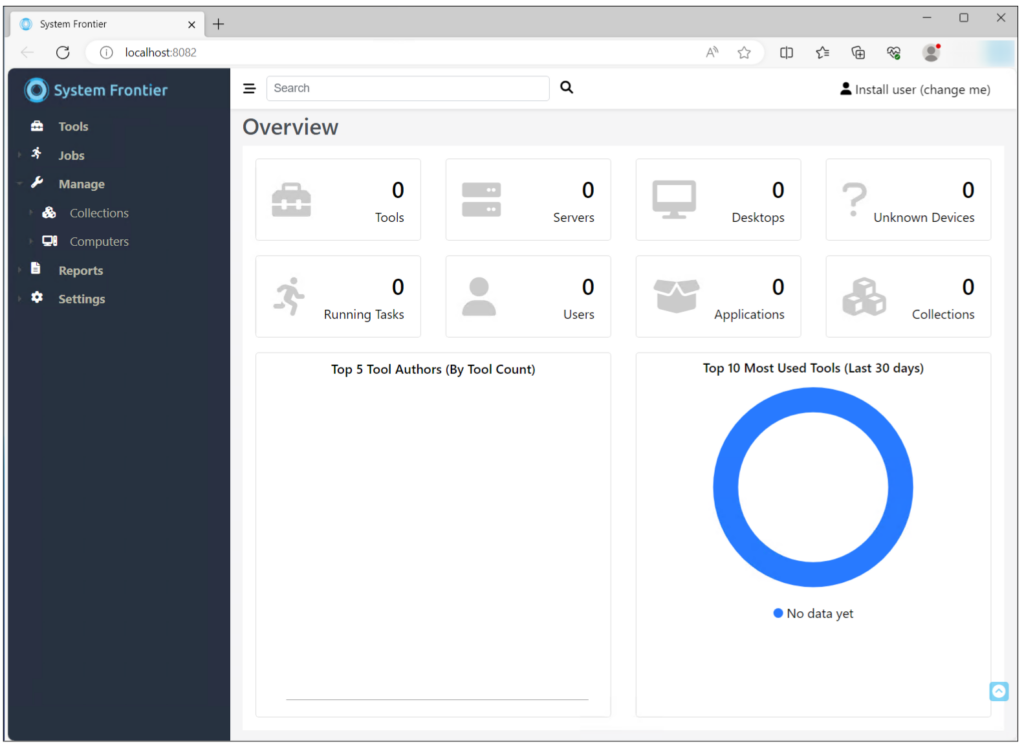
You should see the default dashboard for a new install, verifying the web application was installed correctly and is connected to the database with a valid license key.
Congratulations! You have successfully installed System Frontier. Now you’ll want to complete the post-install steps.