Introduction
This guide will take you through the steps of configuring your new System Frontier installation.
Access the web interface
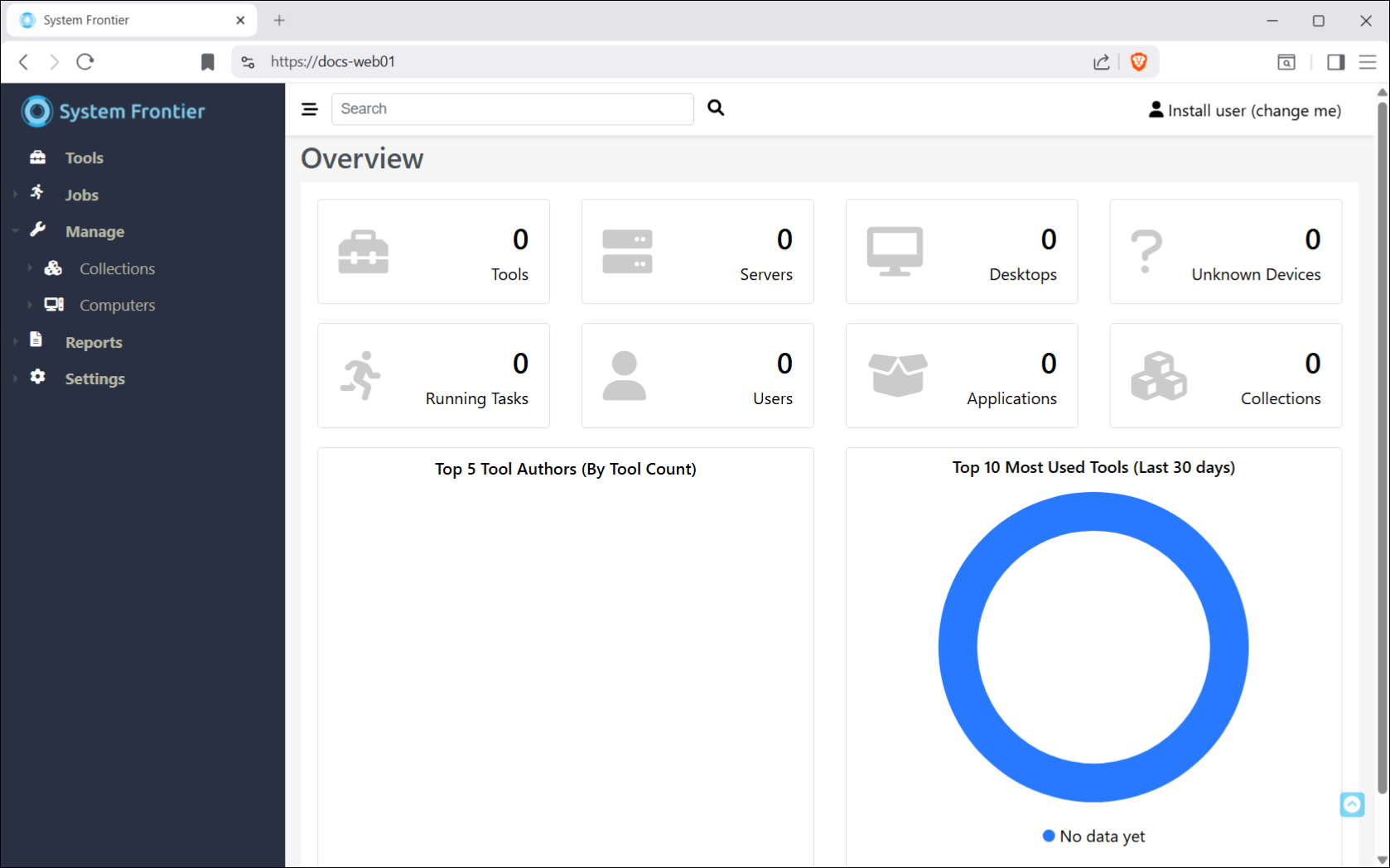
From your workstation, access the System Frontier URL in a web browser.
By default, it will be http://<web server hostname>:8082/
Add an execution host
The first execution host that was installed needs to be added in the GUI so that System Frontier is aware of it. Navigate to Settings > Execution hosts then click New.
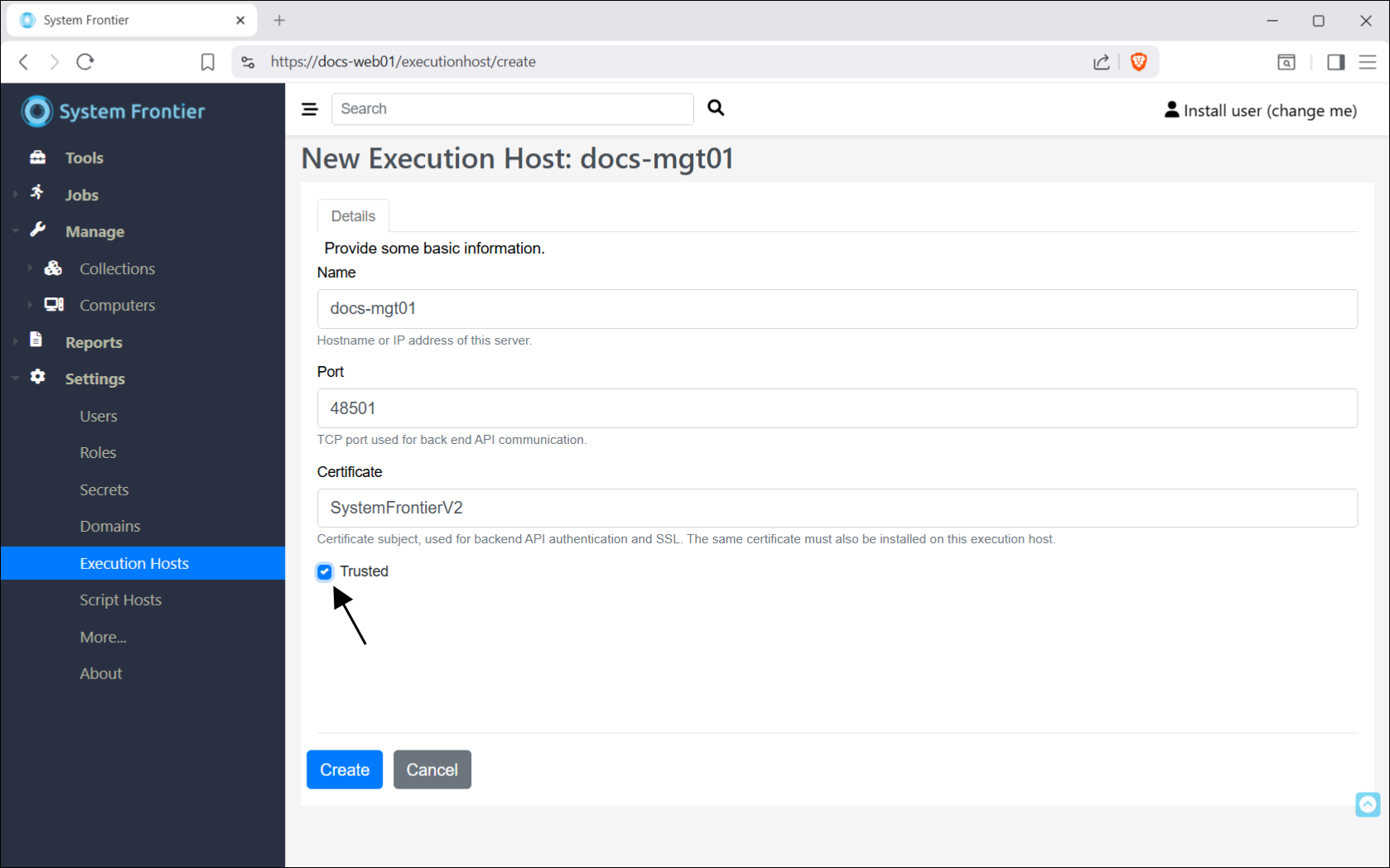
Fill in the hostname of the execution host, use the same port from the install and leave the certificate as the default SystemFrontierV2.
Note: The SystemFrontierV2 certificate is a self-signed certificate created by the installer and can be replaced with your own if needed.
Be sure to check the Trusted checkbox. One execution host must be marked as trusted. If you add others, they will all sync from the trusted host.
Click Create.
Add a secret
All tasks in System Frontier are executed in the context of a secret, on behalf of end users. Let’s add the privileged domain service account to be used for admin level tasks.
Navigate to Settings > Secrets then click New.
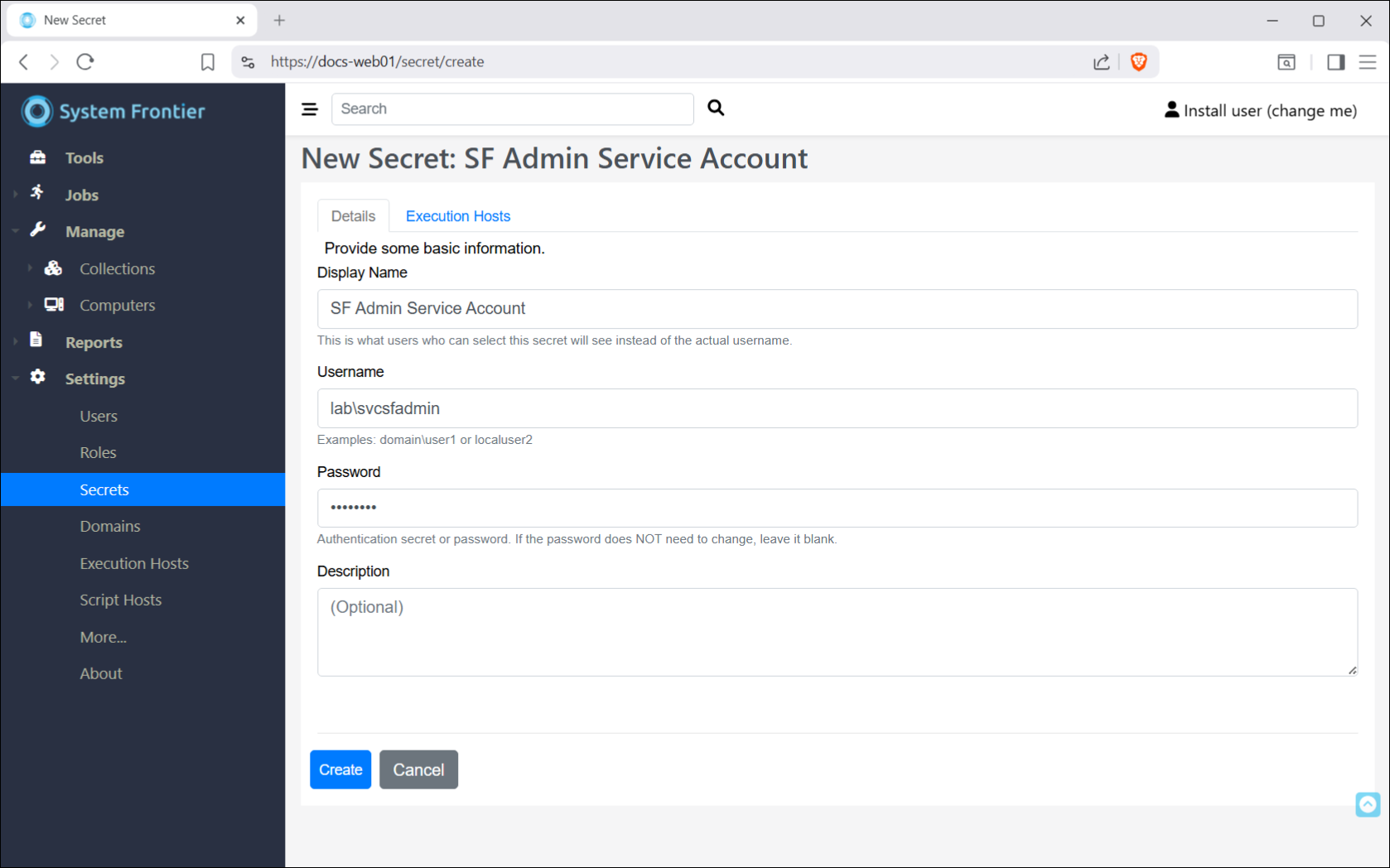
Provide a friendly display name to be shown in the GUI, then the actual username. For domain accounts, it should be in the domain\username format.
Enter the password.
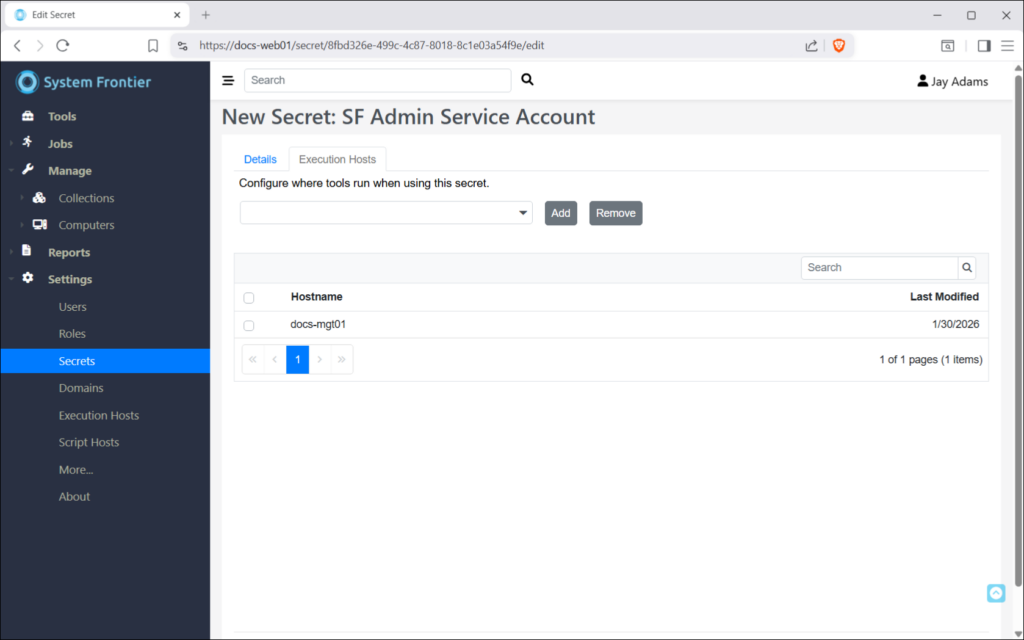
If built-in or custom tools will need to run in the context of this secret, it will need to be associated with an execution host.
Click on the Execution Hosts tab, then from the dropdown, select one or more execution hosts where the account is (or will be) in the local Remote Management Users group and click Add. Whenever System Frontier executes an action that run as this secret, it will execute on an execution host selected here.
Click Create.
Configure privileged account permissions
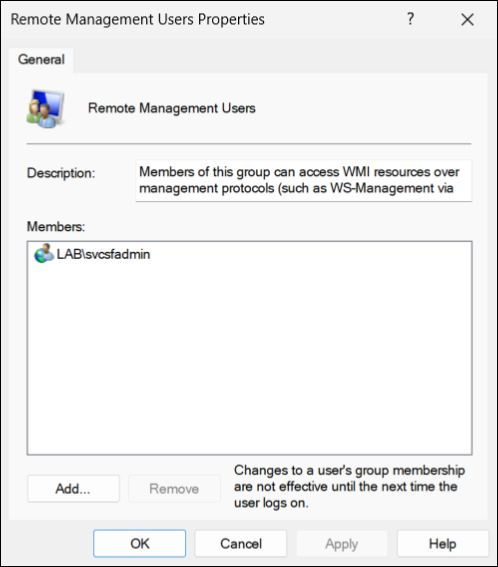
Privileged accounts (Secrets) that will be used to manage objects and execute scripts, need to be added to the Remote Management Users group on each execution hosts where they are configured to run.
Open Computer Management on the execution host (or connect remotely) and navigate to Local Users and Groups > Groups then double-click on the Remote Management Users group.
Click Add.
Provider the account username, click Check Names to verify, the click OK.
Add a user domain
Add the domain you are currently logging in from. Multiple domains can be added and are used for group membership lookups and other Active Directory queries when a user accesses System Frontier.
Navigate to Settings > Domains then click New.
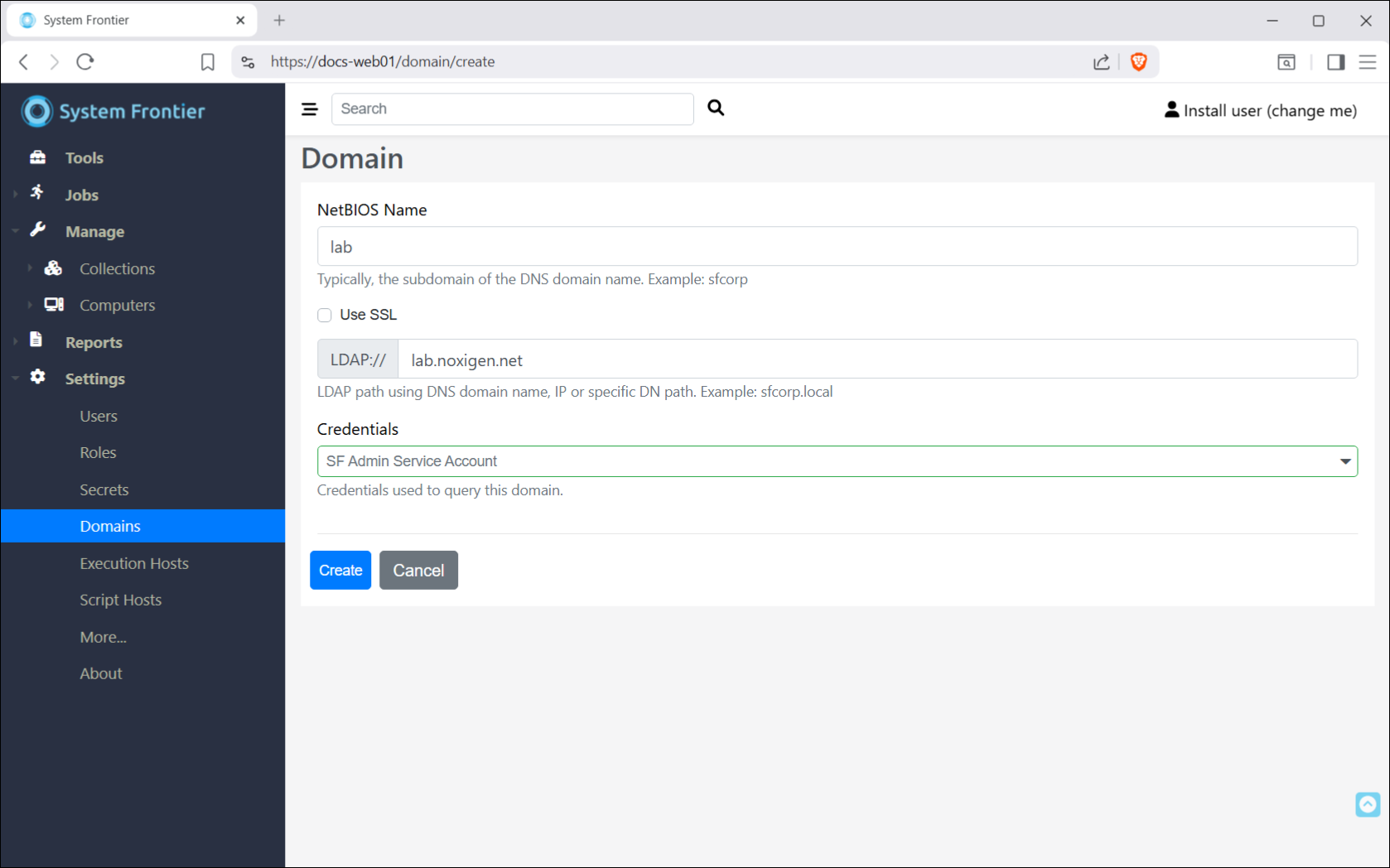
Provide the NetBIOS domain name. This will be the short name of the domain.
Example: lab <= Good
Example: lab.infratek.com <= Bad
In the LDAP textbox, provide the FQDN of the domain, IP address of domain controller or a Distinguished Name path.
Example: lab.infratek.com <= Good
Finally, select the credentials to be used when querying the domain and click Create.
Change your Display Name and time zone
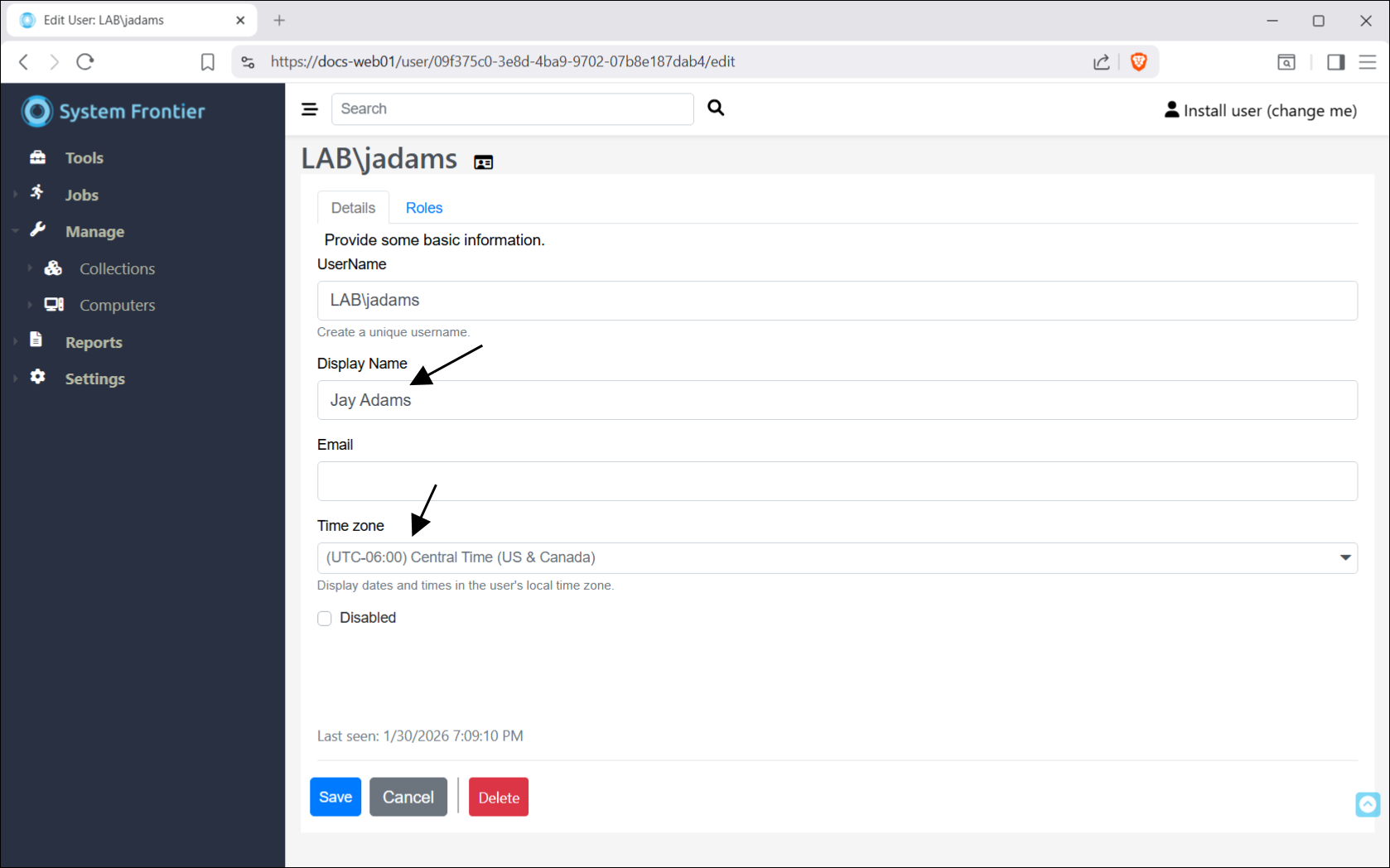
The display name for the first admin is Install user (change me). You can change this to your desired display name.
If the default time zone for your System Frontier account is different than your local time zone, you can change it here. All time related data is stored in UTC but displayed in the user’s local time in the web interface.
Create a basic test tool
Let’s create a simple PowerShell custom tool to verify the setup. While our example uses PowerShell, you can create web-based tools in System Frontier using a variety of scripting languages, including Python, batch files and SSH commands.
By way of testing basic tool execution, we’ll also test the privileged account that’s been added.

If you see the script output like it’s displayed in the video above, that means everything is wired up correctly and ready to go!
Next steps
Explore the admin guide to learn more about configuring each part of System Frontier.